Move a license to a new server
Use the Account app's license-move flow when you are replacing a server or moving your license to new hardware. The new server must be running and connected to your Unraid account before you begin.
Before you start
- Boot the new server and connect it to your Unraid account.
- Sign in to the account that owns the license.
- If possible, keep the old server available so you can compare its license and server details.
The flow uses your signed-in account and its license records; you do not need to upload a license file as proof of ownership. Review the license tier and masked GUID for the license to move, along with the new server name and masked GUID, before you continue. When you confirm the move, the previous licensing device is blacklisted.
Move the license
Open the new server overview
After the new server connects, Account opens its server page with the server status and available setup actions.
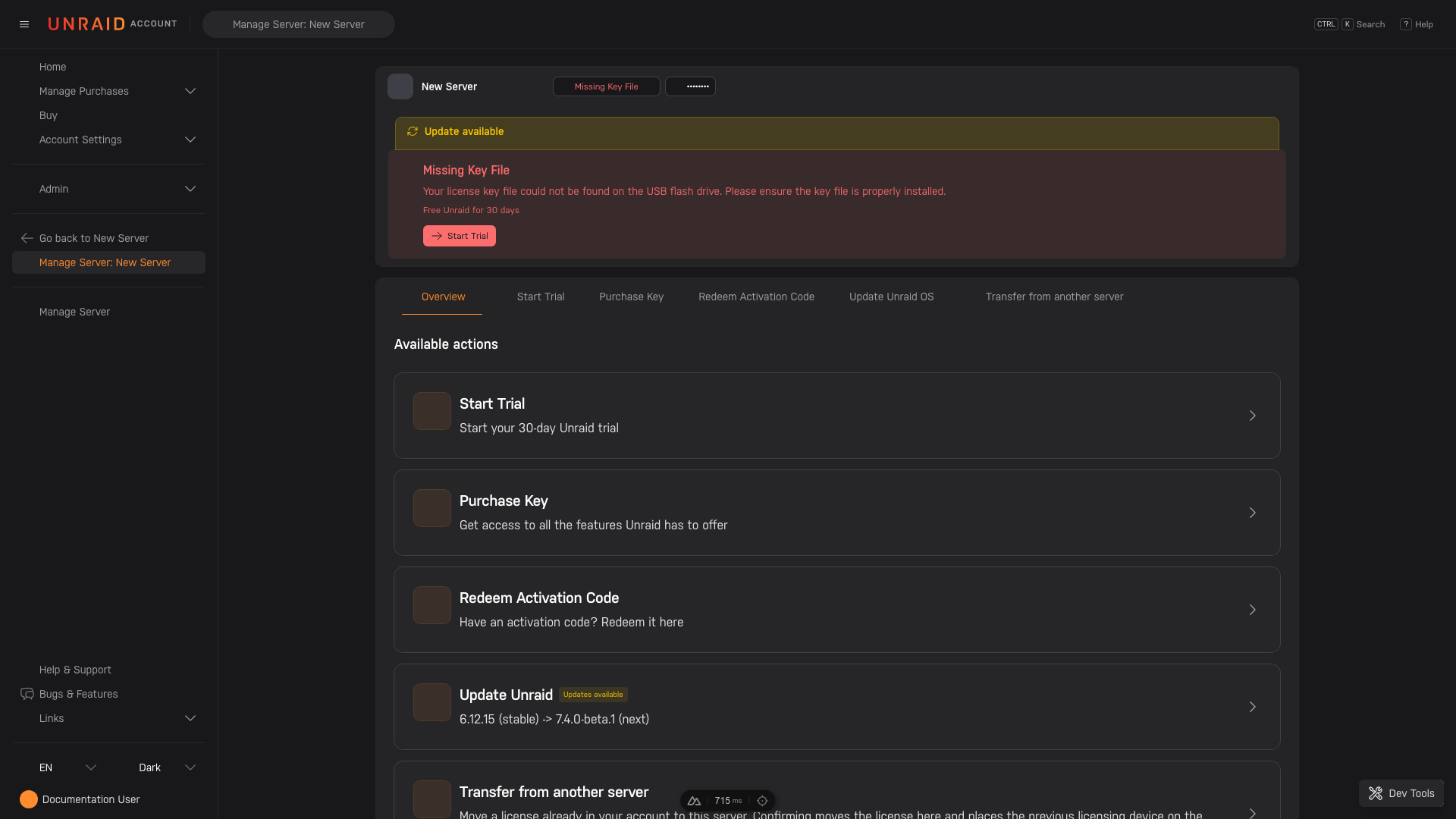
Find transfer in Available actions
On the new server's page, sign in to the account that owns the license. When the server is not assigned to one of that account's licenses, Account shows Transfer from another server at the bottom of the Available actions list. Select it to begin.
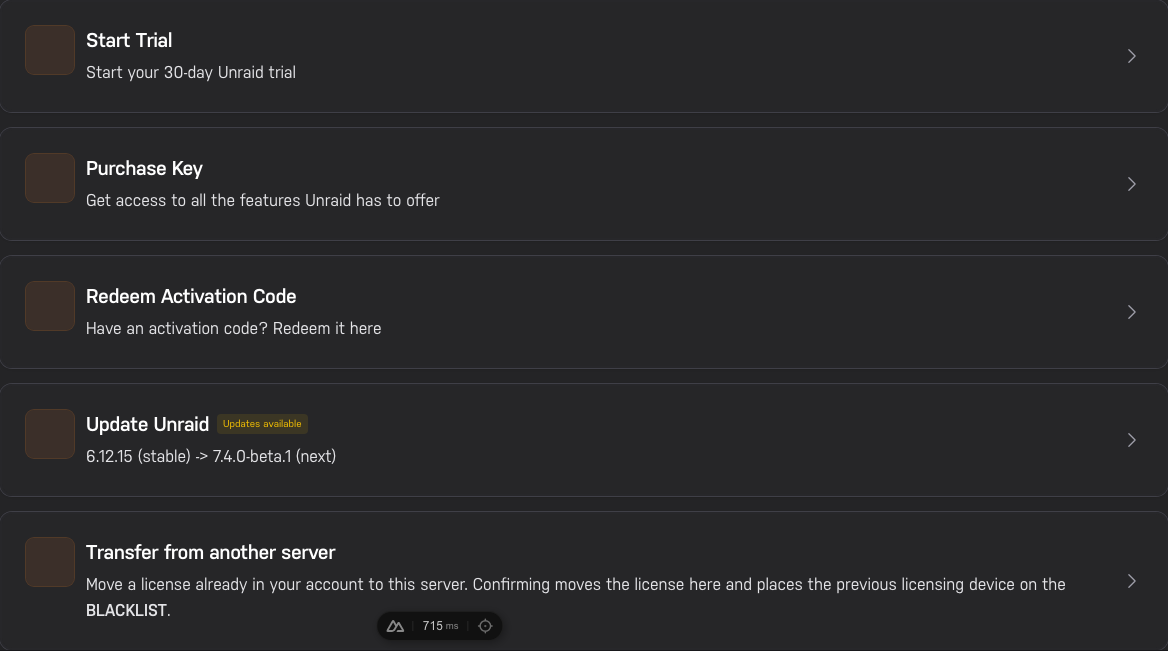
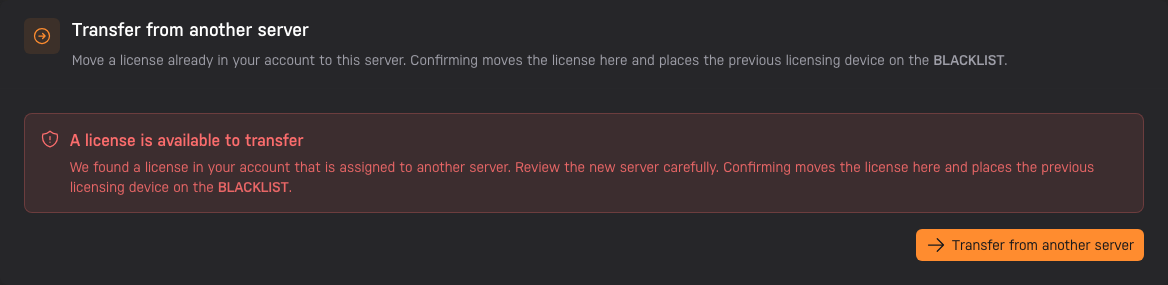
Open transfer from another server
The transfer card explains that a license assigned to another server is available. Select Transfer from another server to continue.
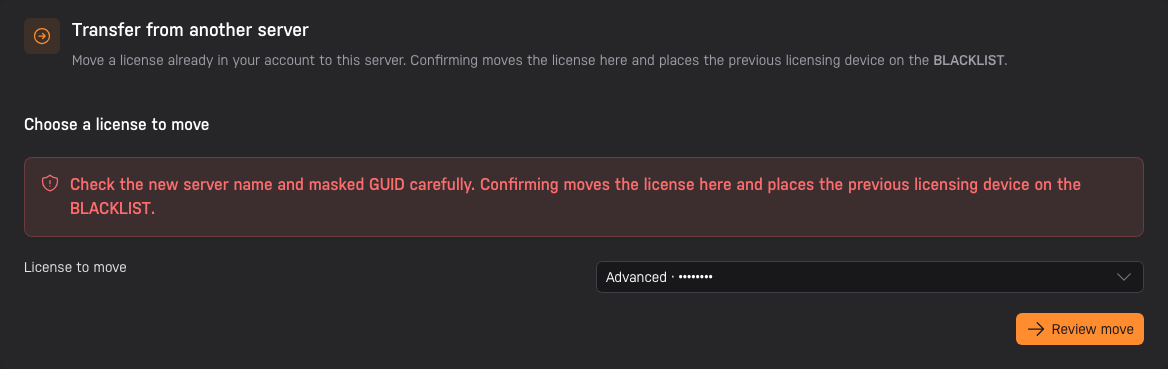
Choose a license to transfer
Choose the license you want to move from the account's available licenses, then select Review move.
Review the source and destination
Check the license type and masked GUID under License to move. Then check the new server name and masked GUID under New server.
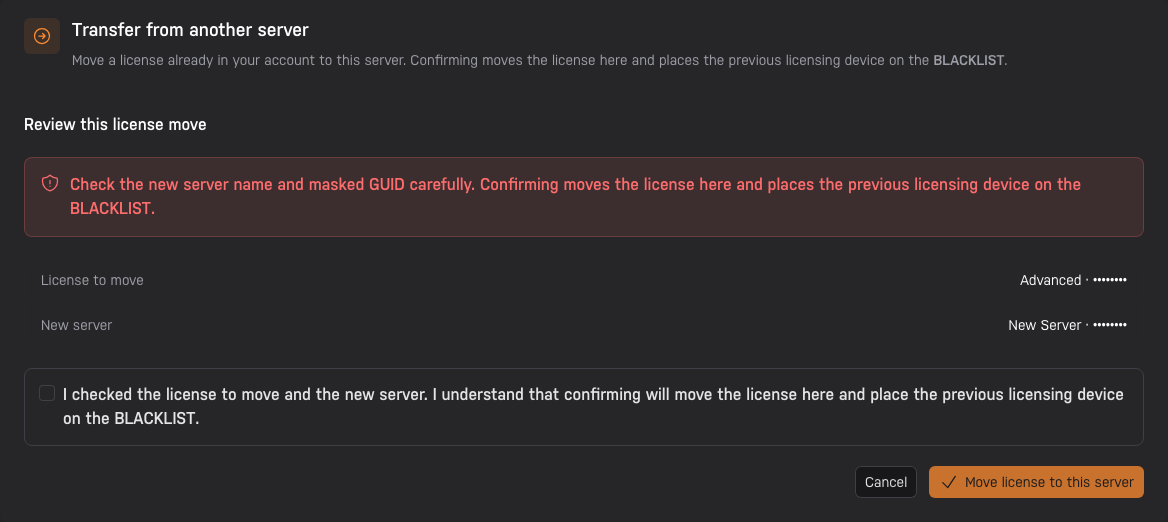
Acknowledge and move the license
Select the acknowledgement checkbox after you verify the license to move and the new server. The final action becomes available only after acknowledgement. Select Move license to this server to commit the transfer.
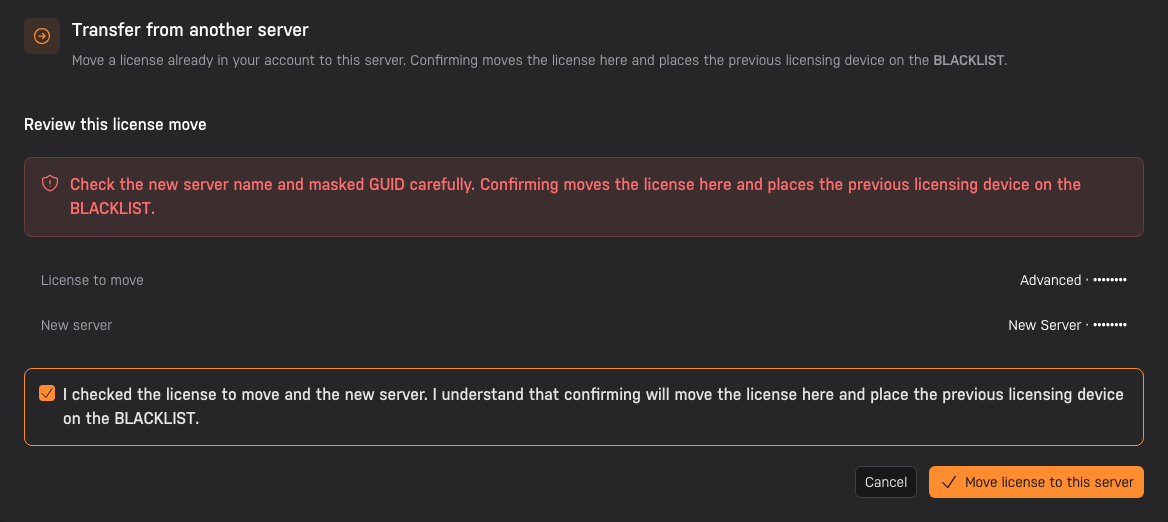
After confirmation, the previous licensing device is blacklisted and the license is delivered to the new server through the callback flow. If the server cannot receive the key automatically, use the manual key installation instructions in the Licensing FAQ.
If you selected the wrong server
Account checks the target context's shape and shows the server name and masked GUID for review, but the current flow does not cryptographically prove that the context came from the intended physical server. A future signed or one-time target challenge can strengthen this check.
Do not confirm the move until the server name and masked GUID match the server you intend to use. The source remains active before confirmation, so you can select Cancel and start again. If you already confirmed the wrong target, contact Unraid support before attempting another transfer.